Connect ScalePad to Lemhi
Create a ScalePad API key, then test and save it in Lemhi Engage under Settings > Integrations.
Written By The Lemhi Product Team
Last updated 10 days ago
This is for the ScalePad administrator and the Lemhi admin connecting the two. When you finish, Lemhi holds a working ScalePad API key and the ScalePad page shows as connected.
Create a ScalePad API key
Sign in to ScalePad as the dedicated user Lemhi will write as (for example a Lemhi service user). Open the Hub and select API.
Select New API key, name it (for example "Lemhi"), and copy the key.
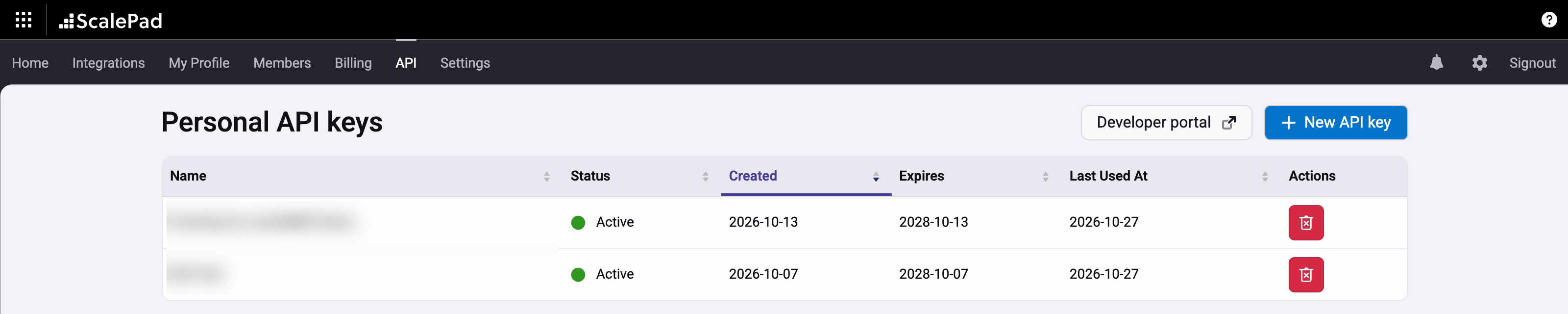
Everything Lemhi writes to ScalePad shows the key's owner as the author, so use a dedicated user rather than a person's own login. ScalePad keys expire after two years by default.
The key acts with its owner's Lifecycle Manager role. That user needs permission to read clients and to create and edit initiatives, meetings and notes. Test connection checks only that the key can read clients.
Connect ScalePad in Lemhi
In Lemhi Engage, go to Settings › Integrations and select Connect on the ScalePad card.
Paste the key into API key and select Test connection. You should see "Connected to ScalePad."
Select Save. Lemhi stores the key securely and shows only its last four characters.
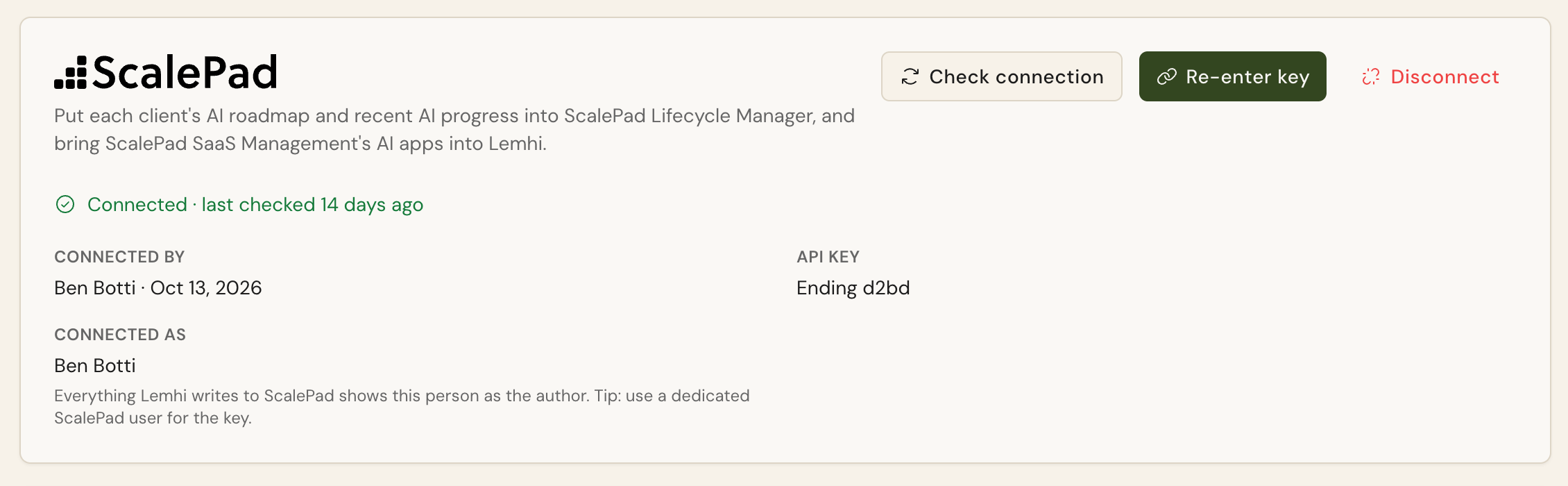
A key is never saved until ScalePad accepts it. If the test fails, Lemhi says why in plain words, for example "ScalePad rejected the key. It may have expired. Paste a new key." Use Check connection any time to re-test the saved key, and Re-enter key to replace it.
Next
Related
Was this helpful?
Still need help? Ask the team