What the Lemhi AI Usage extension does and what it collects
What the extension records, what it never reads, how work and personal accounts are handled, and who sees the results.
Written By The Lemhi Product Team
Last updated 10 days ago
For MSPs deciding whether to roll the Lemhi AI Usage extension out to a client, and what to tell that client and its staff. When you're done you'll know exactly what it records, what it can't see, and where the results show up.
What it records
The extension notices when one of five AI websites is open in Chrome or Edge on a company Windows computer: ChatGPT, Claude, Gemini, Microsoft Copilot and Perplexity. For each one it records the day it was used on that computer, the site's address, and the signed-in account: the email for a company address, or only the domain plus a one-way code for a personal one. For ChatGPT and Claude it also records whether the account is on a free or paid plan. Microsoft Copilot is recorded as work or personal from the site address, with no email. Each check-in also sends the browser version and the extension version.
The point is tools, not people. The client learns which AI tools are in use so it can approve the right ones, provide them properly, and set clear guidance.
What it never reads
Anything a user types or receives, on those five sites or anywhere else.
What a user does on other websites.
Private or incognito windows, other browsers, or phones.
Work and personal accounts
Who sees it
You, and the people at the client responsible for IT and AI governance. It appears as a summary per computer and per tool.
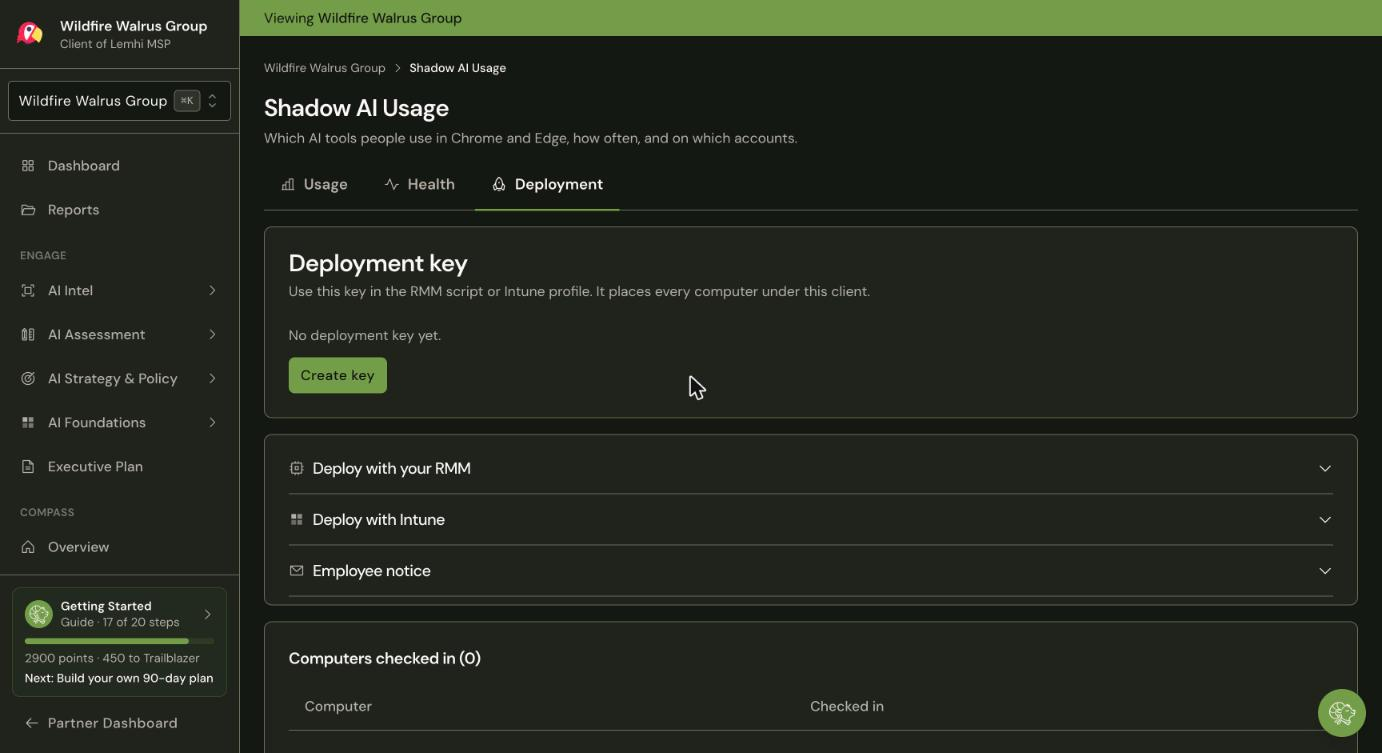
In Engage, open the client, then Shadow AI Usage under Compass in the left menu. Each computer appears on the Deployment tab after its first check-in. The Health tab shows one row per browser, with the extension version and Reporting / Stopped reporting.
Silent, locked, hidden
Silent. The browser installs it with no prompt and no "Add extension" dialog. The user does nothing.
Locked. There's no Remove or Disable button. If a user deletes the extension's files, the browser reinstalls it.
Hidden. It has no toolbar button and no popup, so nothing appears on the toolbar and nothing is pinned.
No policy can hide two things from a user who goes looking:
an entry in
chrome://extensionsoredge://extensionsmarked "Installed by your organization";"Managed by your organization" in the browser menu, which shows once any browser policy exists. Many MSP clients already show it.
The Deployment tab carries an employee notice you can send before rollout.
The key sits on the computer
Each client has its own deployment key. It's stored in plain text in your RMM script and in HKLM\SOFTWARE\Policies, which any local user can read. It only authorizes sending usage data for that one client and can be regenerated at any time. That's the same posture as other vendors' per-tenant extension keys.
Don't reuse one client's key for another client. A computer reports under whatever key its policy carries.
Related
Was this helpful?
Still need help? Ask the team