Step 1: Request the GDAP relationship in Partner Center
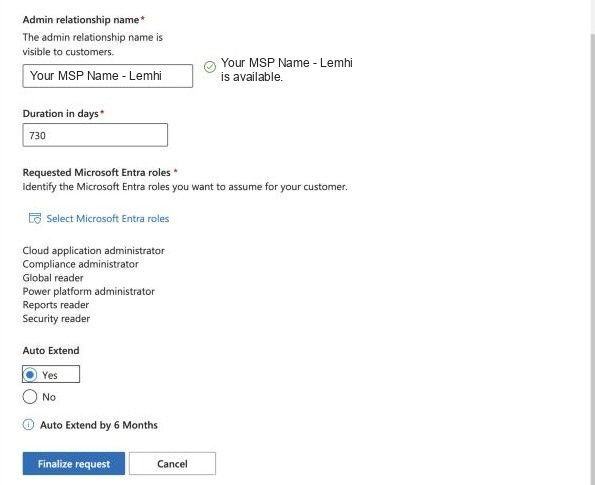
Create the GDAP request for a client with the six roles Lemhi needs, a 730-day duration, and auto extend on.
Written By The Lemhi Product Team
Last updated 10 days ago
This is for the MSP admin requesting a new GDAP relationship with a client. When you finish, the client has an approval link waiting for their Global Administrator.
Before you start
Complete Before you connect a client.
Open the request form
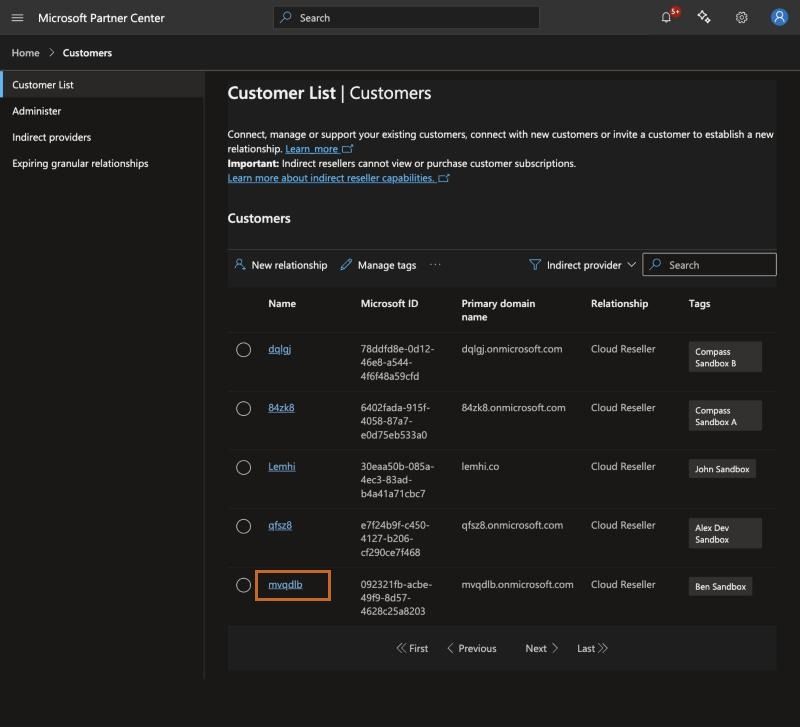
Sign in to Partner Center and select Customers, then select the client by name.
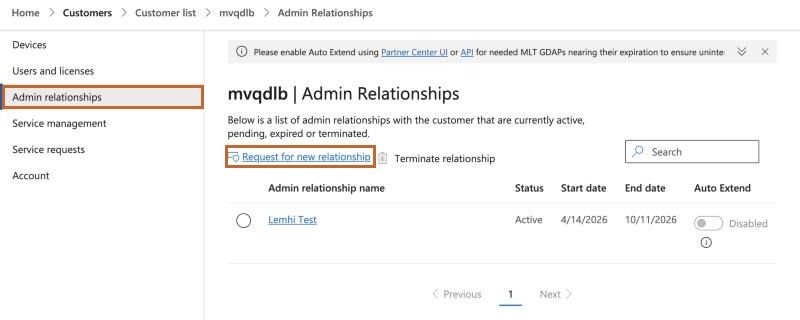
In the left menu select Admin relationships, then Request for new relationship.
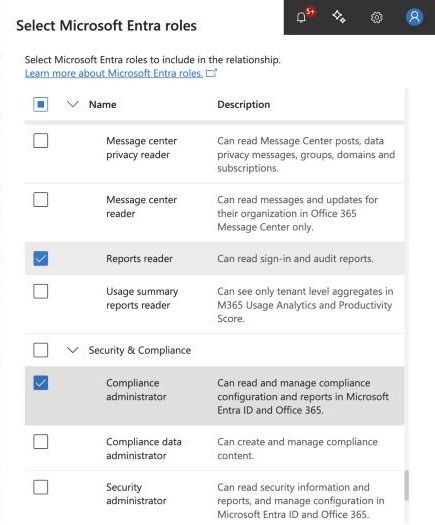
Set each field to the value in the first table below.
Field values
Roles to select
The roles are grouped by category in the picker: Global reader, Reports reader, and Security reader are under Read Only; Compliance administrator is under Security & Compliance; Cloud application administrator is under Identity; Power platform administrator is near the top of the list, above Global.
When you're done, the form should look like this:
Finalize the request
Select Finalize request, then Done.
Partner Center shows an email with a personalized approval link. Send it to the client's Global Administrator. You can change the wording; don't change the link.
Before you finalize, two things to know:
Request all six roles now. Roles can't be added later. Leaving one out means another new relationship and another approval ask to your client.
The request expires after 90 days if the client doesn't act on it.
Next
Step 2: Your client approves the request
Related
Was this helpful?
Still need help? Ask the team