v1.1: Lemhi Update - Ossage Creek, MO Release

A quiet creek crossing two days out of St. Charles, near the homestead of Daniel Boone's son — the first landmark past civilization.
This release turns Lemhi into a full assessment-to-conversation engine. You can now scan a client's M365 environment, generate a branded report with your own commentary, and walk into any client meeting with findings grounded in real data around their AI Adoption.
Microsoft 365 Security Scan
Lemhi now scans your clients' M365 environments and surfaces prioritized findings across licensing, configuration, and usage — giving you hard data to anchor every AI readiness conversation.
How to Run A M365 Tenant Assessment
To run the 365 scan for a client, connect their Microsoft tenant through Lemhi's Partner Connect flow:
You can find the Microsoft Partner Integration at the MSP level under Settings > Microsoft Partner Account
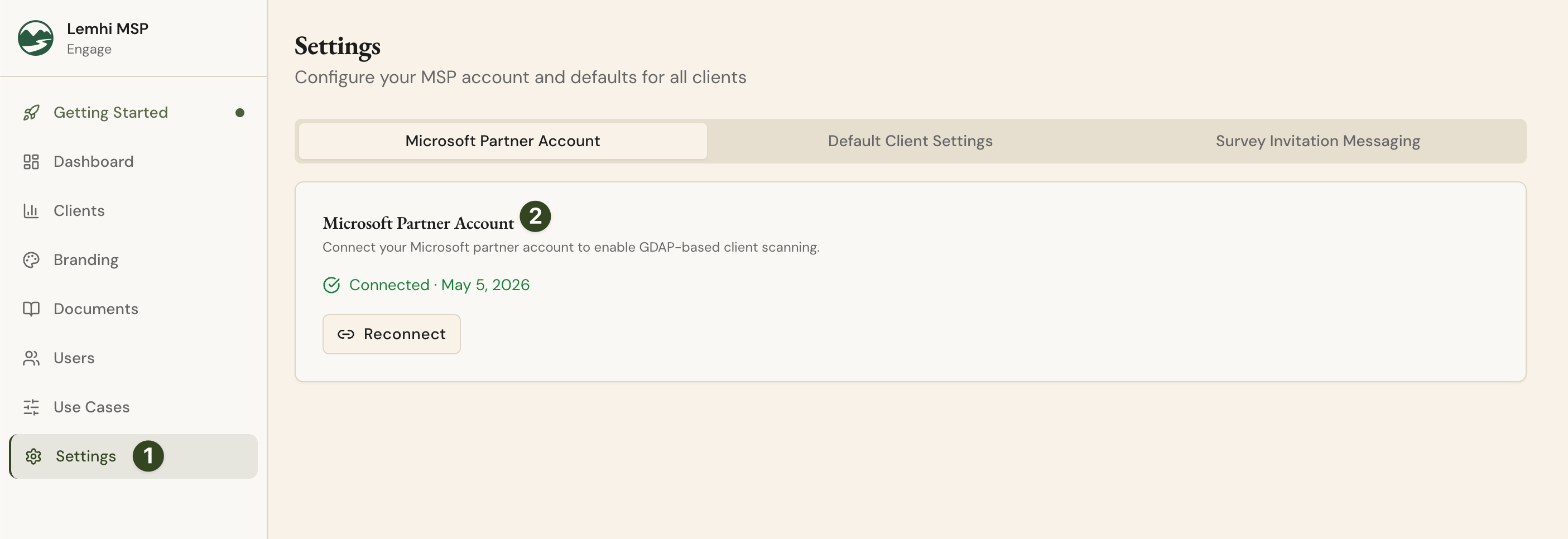
Once connected, you’ll be prompted to integrate your Microsoft Partner Center Account via GDAP.
Talking to an existing client about AI for the first time? Once connected, you can import the client from 365 into the Lemhi Platform by clicking “Add Client” from the MSP dashboard.
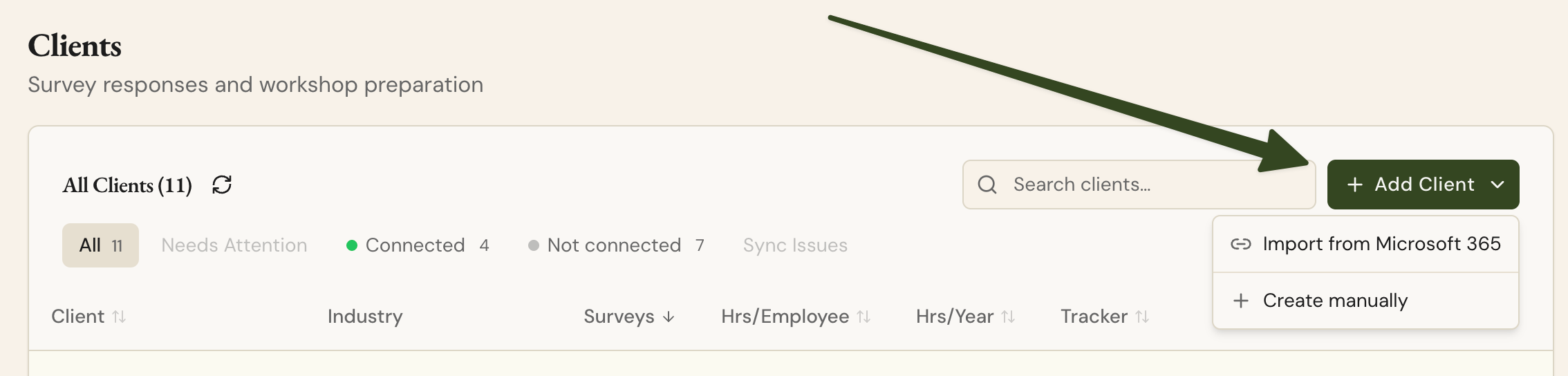
Run the Scan
Once your M365 account is integrated, you can run a Tenant Assessment on a specific client by navigating to AI Readiness > Tenant Assessment within a specific client.
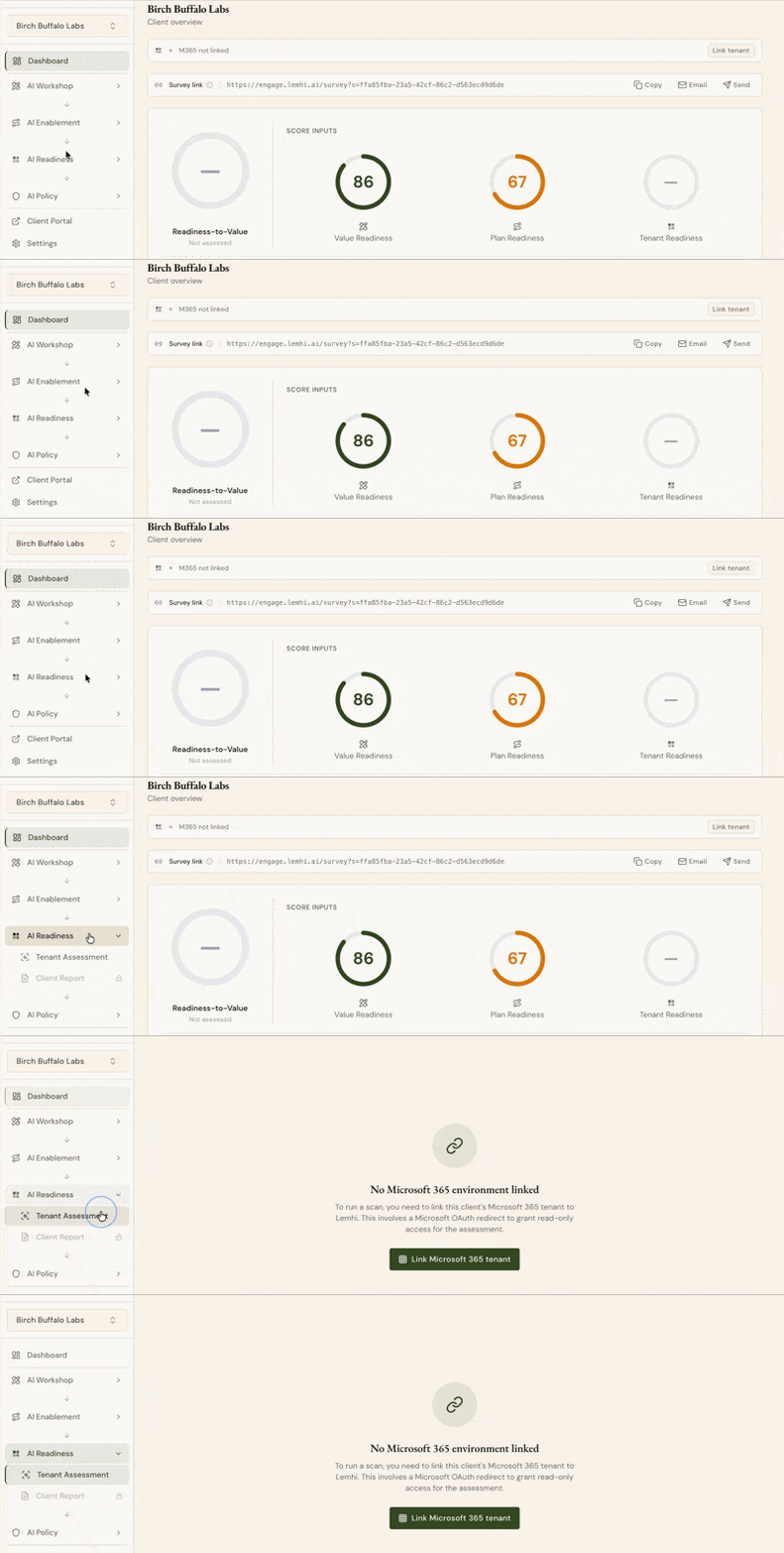
When the M365 integration is connected, you’ll see the option to run a scan on that particular tenant. A scan will typically take 1-2 minutes to complete while we collect the appropriate data.
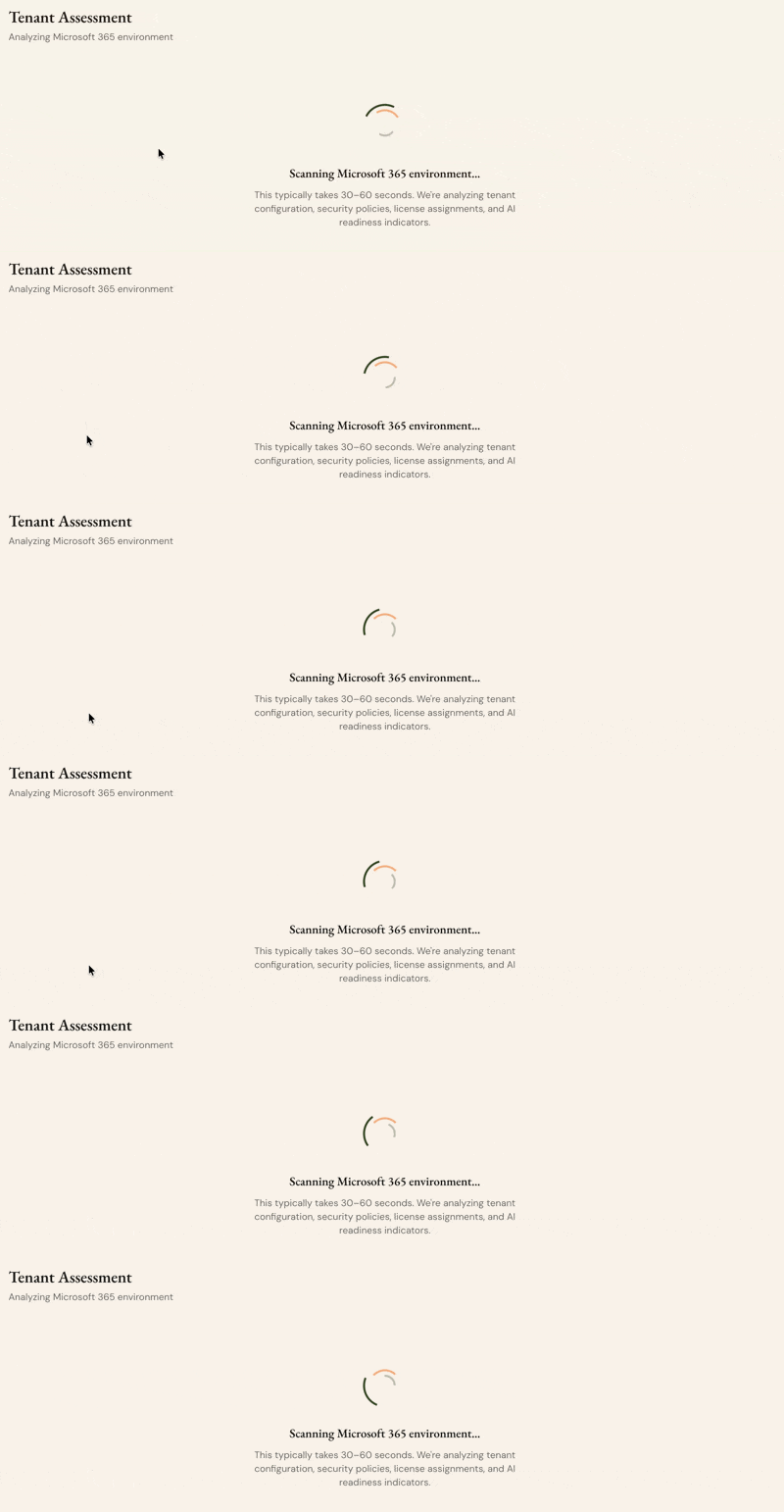
Running a scan analyzes data across Entra, Sharepoint, Purview, Teams, and other M365 products to make recommendations about where AI will be the highest, as well as security and data governance recommendations.
Deliver a Complete, Branded Report to Clients
Once the scan completes, you have everything you need to run a client-ready debrief:
AI Executive Summary — A plain-language summary of every finding, auto-generated from scan results. Your clients see the full picture.
Score narratives — Each pillar score now includes an AI-generated explanation of what it means and why the client scored that way, so clients understand the "why" without you having to spell it out.
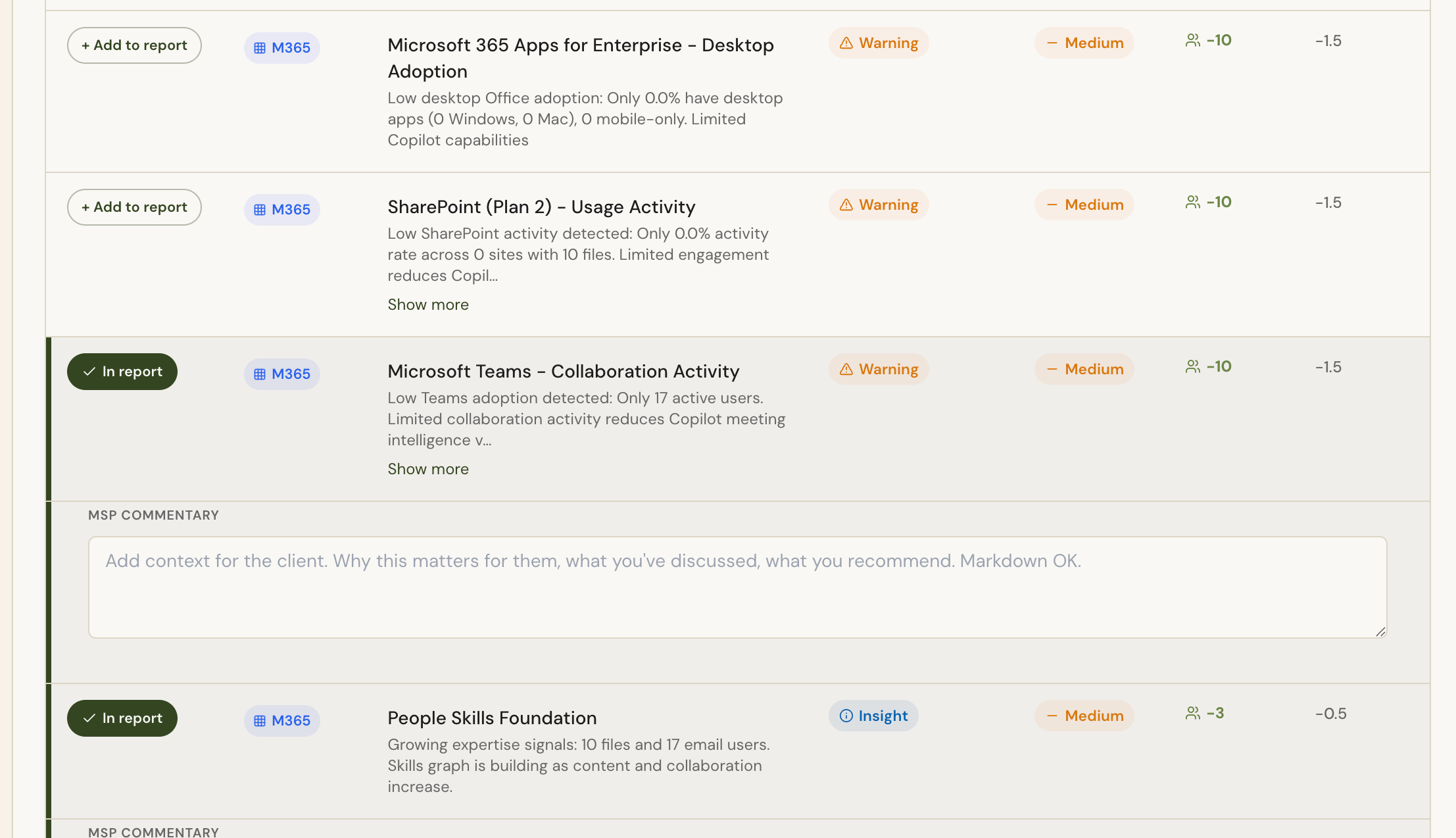
Deliver branded reports to clients — Select specific findings, add your own commentary to each, and export to PDF.
Recommendations grounded in real scan data — Scan findings surface directly in product, with the ability to add your own commentary, so your action plans reflect the client's actual environment plus your own knowledge and expertise.
Assess Your Own M365 Environment
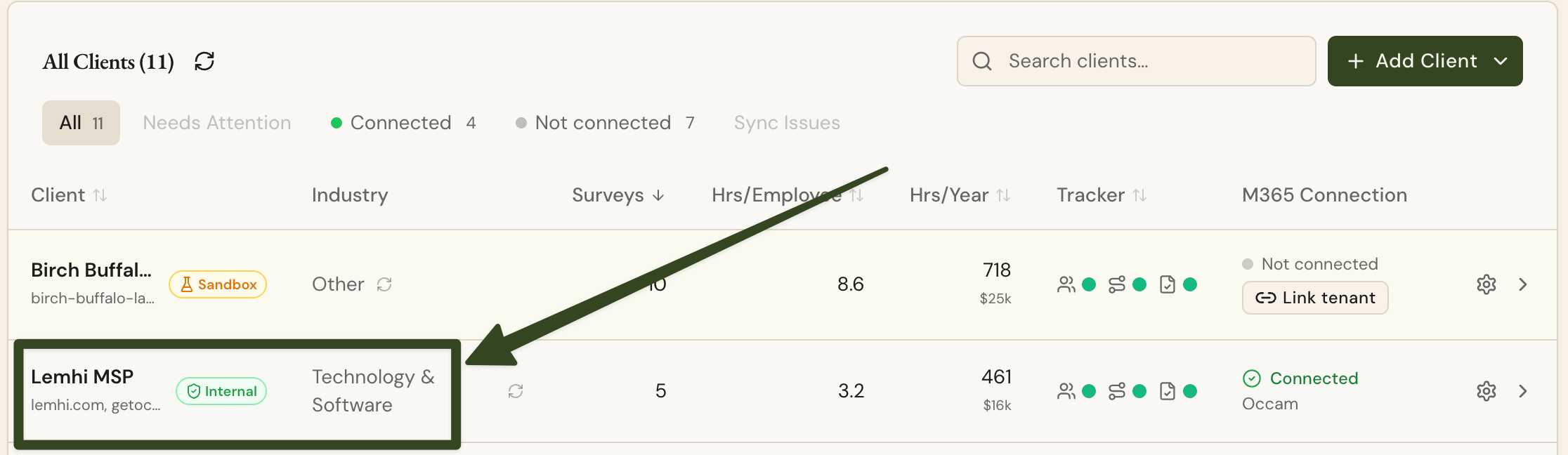
Run the 365 scan against your own Microsoft tenant as an internal benchmark. Lemhi automatically creates an Internal client representing your own organization when you set up your MSP account — it appears labeled as Internal in your client list. Use this to validate your own posture before you sell assessments to clients.
Industry Verticalization
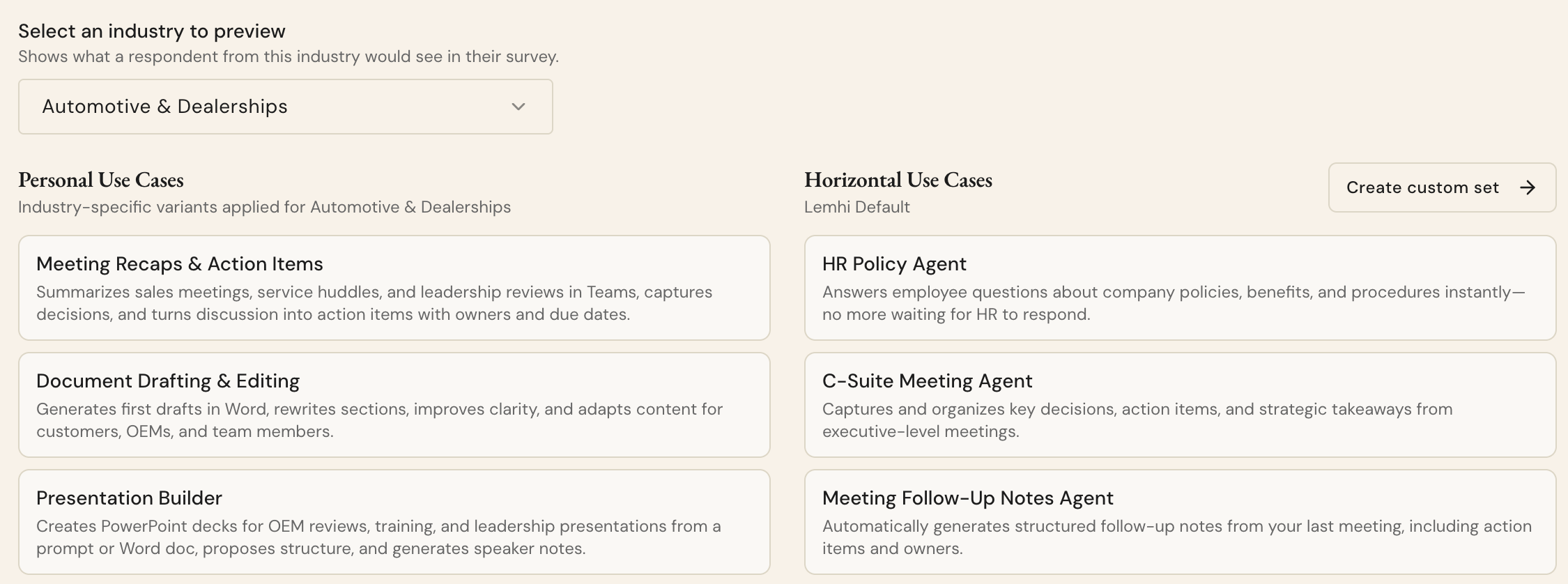
Lemhi now adapts its language, use cases, and tooling to match each client's industry — so every deliverable feels purpose-built, not generic.
Speak Each Client's Language
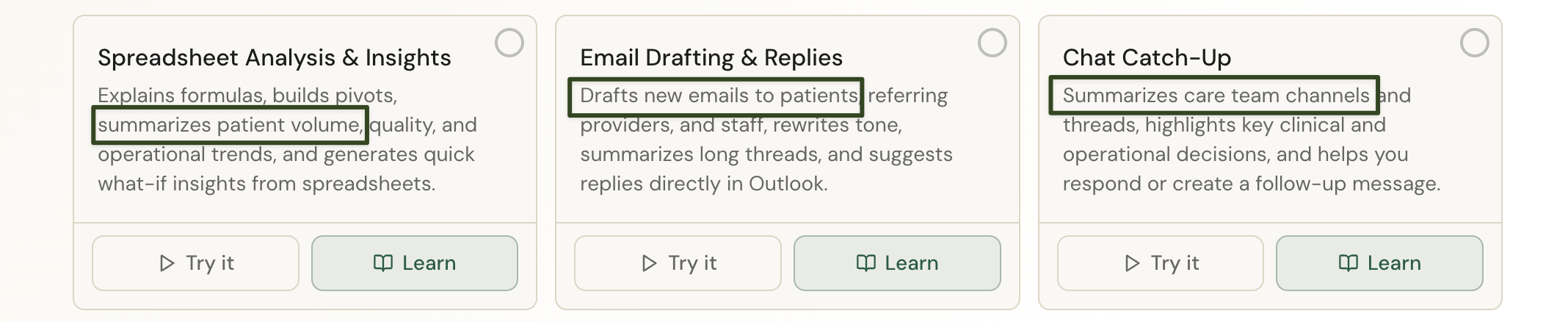
Industry-specific framing — Survey use case labels automatically adjust based on the client's industry. A healthcare client sees generic wording about AI use cases, but real examples that apply to their business no manual customization needed.
Curated use case libraries per vertical — Build your own use case sets for specific industries or client types and apply them across your full book of business in one step.
AI tool inventory with approval status — Categorize each client's AI tools as Approved, Conditional, or Blocked. A catalog picker covers standard tools; custom entry handles anything outside the list. This gives you a defensible record for compliance conversations.
Industry Captured Automatically
When you connect a client via Microsoft or create one manually, Lemhi auto-detects their industry from a global SMB list with AI normalization. You no longer fill this in by hand.
Survey & Engagement
Making the Survey Experience Seamless
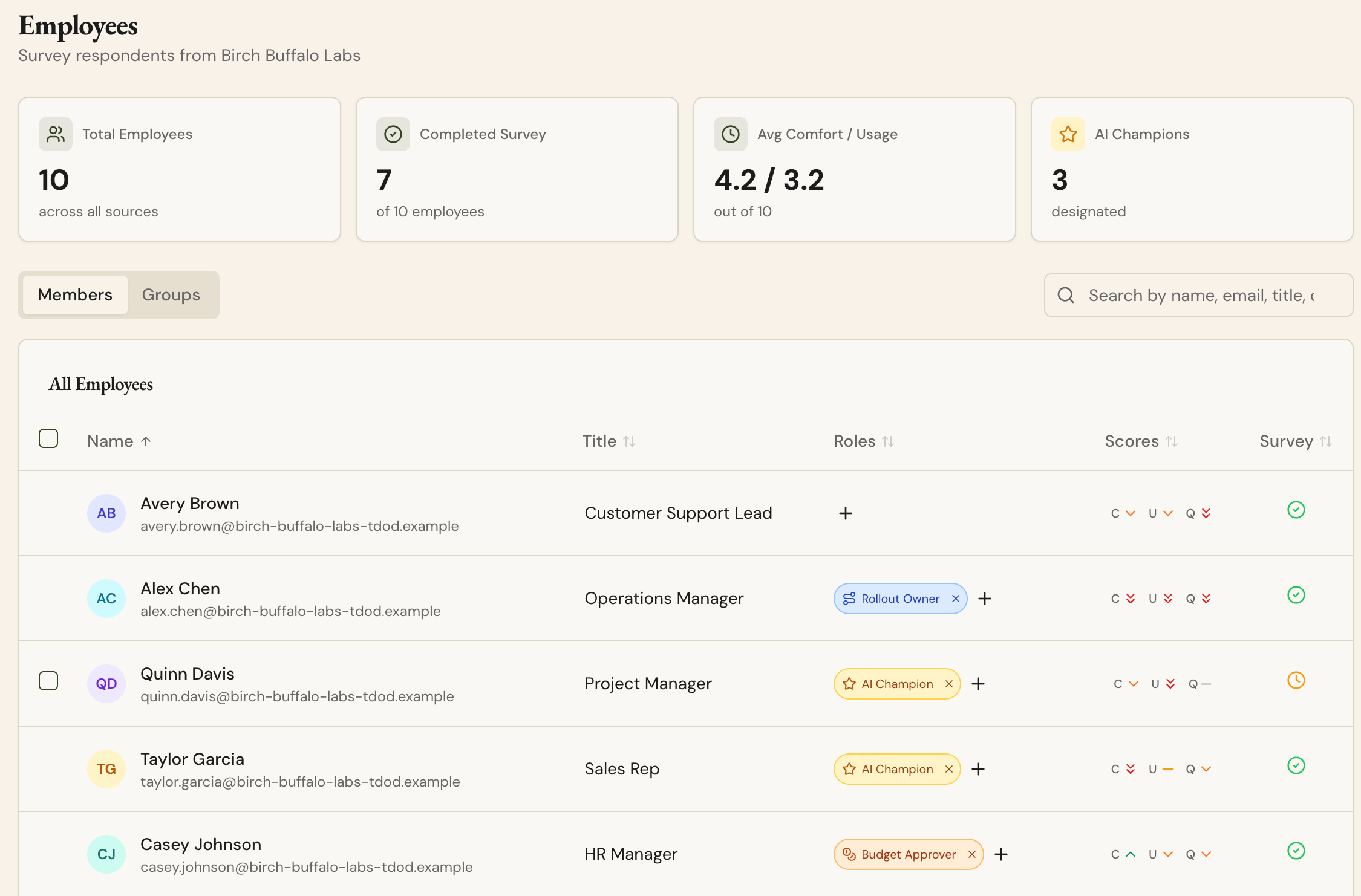
Send surveys from the employee list — Invite employees directly from the Employees & Groups screen with customizable messaging and follow-up options. No more copying a generic link and hoping it reaches the right people.
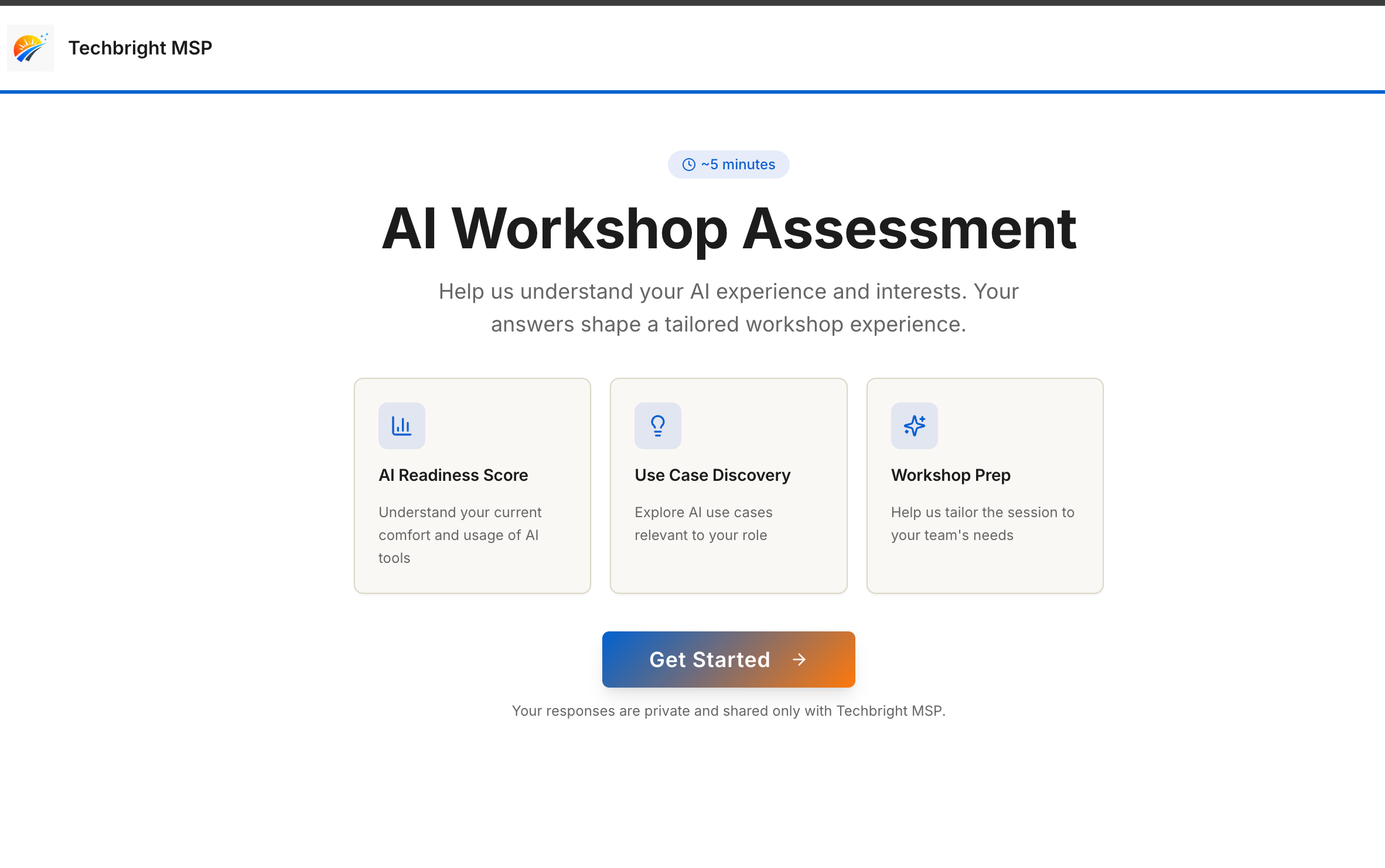
Survey link on every client dashboard card — Each client's unique survey link is one click away from their dashboard, so you're not digging for it mid-meeting.
Pre-filled recipient fields — When employees are invited via Microsoft, surveys arrive with First Name, Last Name, Role, and Department already populated. Lower friction means higher completion rates and more valuable data for building your AI plan.
Works Everywhere, Looks Like You
Mobile-responsive survey — The survey works properly on phones and tablets, removing a completion barrier for employees who aren't at a desk.
Consistent MSP branding — Survey, AUP, and plan pages now apply your custom fonts and colors throughout, including inline AI insight cards. Clients see your brand, not Lemhi's.
Other Improvements:
AI Planning & Dashboard
One dashboard for the full AI picture — AI Workshop, AI Planner, AI Scorecard, and the new AI ROI score are consolidated into a single view. You can walk a client through their entire AI readiness story without switching screens.
Refined AI Planner experience — The planner has been updated for clarity and usability.
Redesigned score visuals — Comfort, Usage, and Quality scores are updated in both the product and your AI Presentation deck.
Branding & Customization
Self-serve font library — Add and manage fonts for your tenant branding directly from the admin panel.
Channel partner "Powered by" branding — Define partner organizations in global admin and display a co-branded banner on tenants assigned to that partner. Supports white-label and referral models.
Consistent client portal branding — The client-facing portal applies your MSP's fonts, colors, and header treatment throughout.
Bug Fixes
Fixed an issue where SharePoint site counts appeared contradictory on the same 365 scan view
Fixed duplicate use cases that occurred when adding them manually during the AI Enablement survey
Fixed the "Try it" AI sandbox returning raw code instead of an AI response
Fixed a large empty gap appearing on the right side of the M365 scan findings table
Fixed the Value Readiness score weighting — the Use Cases pillar was under-weighted relative to its intended share
Fixed an issue where opening a pre-filled survey link could cause an infinite reload