Lemhi Release — Floyd Bluff, MO (Jun 9, 2026)

What's New: June 9th, 2026
This release moves Lemhi past the one-time assessment. Last release you could scan a client and hand them a branded report; this release you can keep the conversation going: see exactly how their teams are actually using Copilot and now Claude, read their data-protection posture before you turn AI on, and run your entire book of business from a single screen. The through-line: turning a point-in-time assessment into an ongoing, data-backed AI relationship with every client.
AI Observability
See how AI actually shows up in a client's tenant: who's using Copilot, and what Claude is wired into.
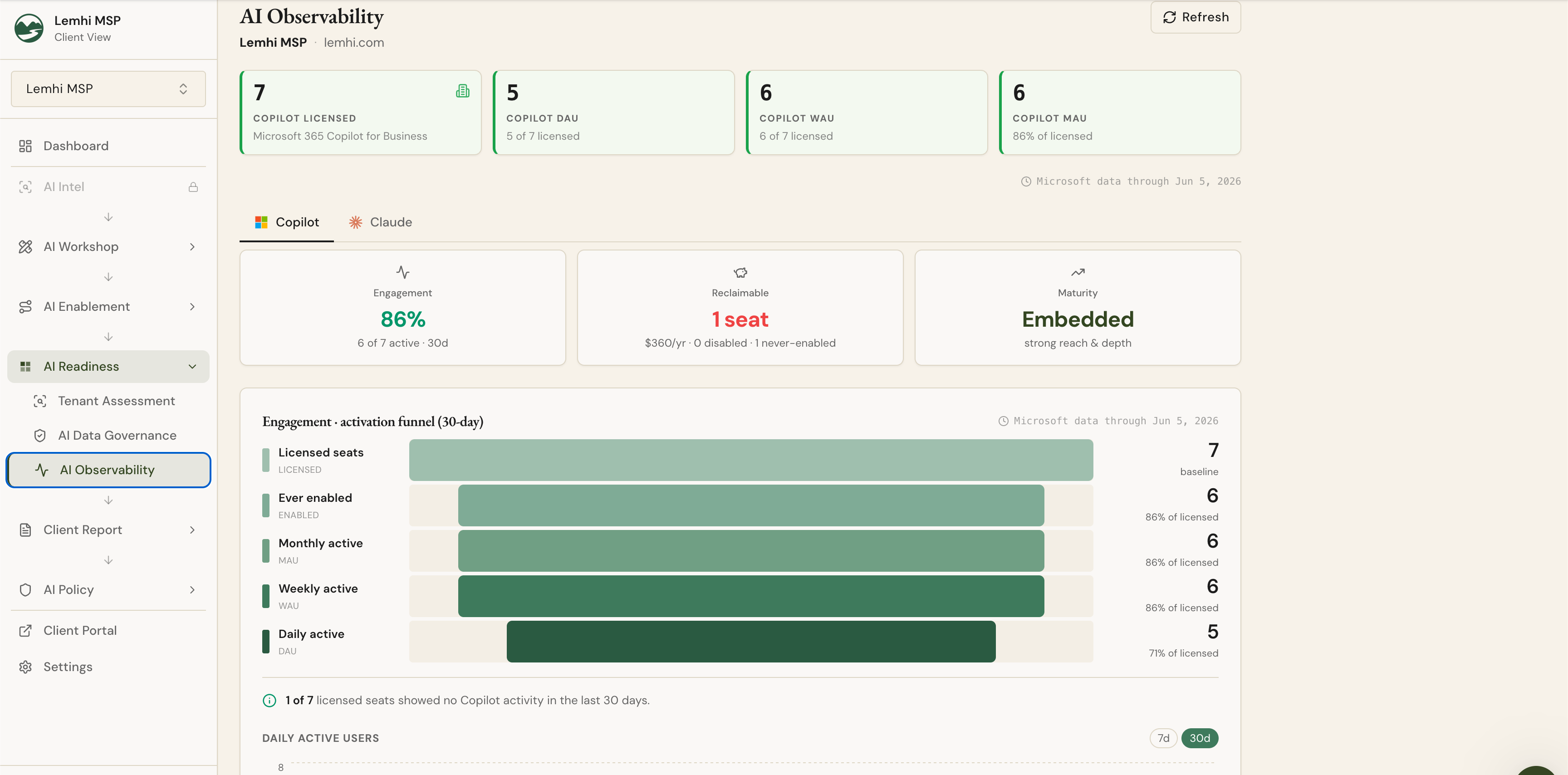
The two things you've been teased on now ship, and they answer the two questions every AI conversation runs into. For Microsoft Copilot, Lemhi reads real usage signal: who has access, who's actually active, and whether the trend is going the right way, giving you an adoption story you can put on screen in a QBR without asking the client to self-report. For Claude, it reads the other half of the picture: which Claude apps are connected to the client's Microsoft 365 and exactly what data each one can reach. This is the shadow-AI exposure most MSPs have no visibility into today.
See where Copilot adoption is landing
Licensed vs. active, side by side: See who holds a Copilot license against who's genuinely using it (daily, weekly, monthly), plus an activation rate, so the gap between "seats paid for" and "value realized" is obvious at a glance. That gap is your enablement pitch, or your case for reallocating licenses.
A 30-day daily-active trend: A rolling trend line shows whether adoption is climbing, flat, or stalling, so you walk into the review with a direction, not just a snapshot.
See what Claude is connected to and what it can read
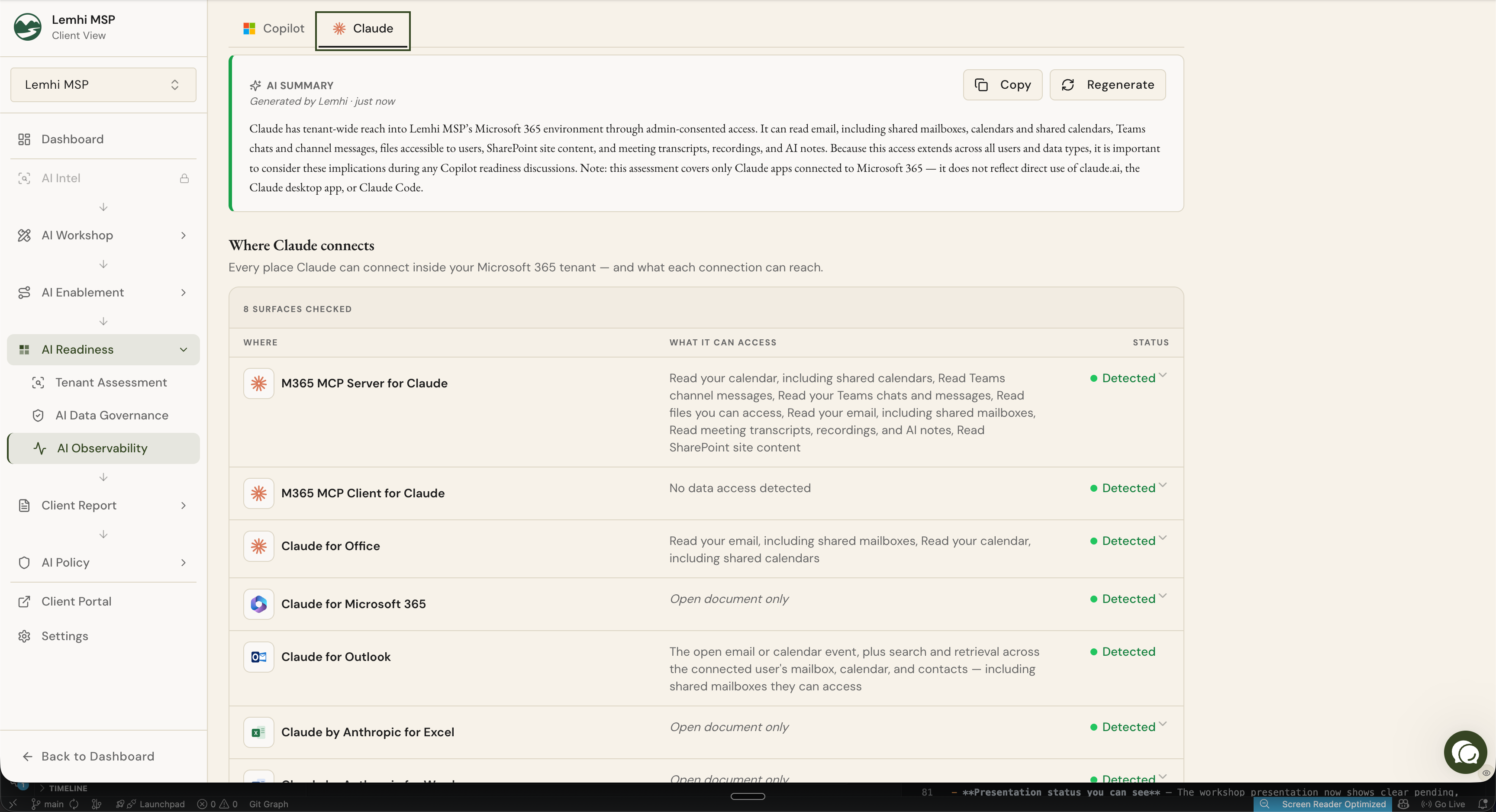
Claude shows up inside a client's Microsoft 365 as connected apps: the Claude connector and the Claude add-ins for Outlook, Word, Excel, and PowerPoint. The Claude view reads those connections straight from the tenant's enterprise-app grants, over your existing Partner Connect access (no new permissions, no Anthropic login), and lays them out as a data-governance picture, not a usage chart.
"Claude connections discovered" and "Data types Claude can read," up front: Two plain-language tiles tell you how many Claude apps are connected and how many categories of M365 data (mail, files, calendars, Teams messages, and more) those apps can reach. It's the headline a client's office manager actually needs.
A per-surface breakdown of exactly what Claude can touch: For each connection, see where it attaches and what it can access in plain English ("read your mail," "read files in SharePoint"), with the underlying Microsoft permission shown for the technically minded. Reach is per connected user, so Claude only ever sees what that person already can.
An AI summary that calls the verdict: A verdict-first summary reads the connections for you: whether this is tenant-wide reach that needs governing, or early individual adoption to get ahead of, and what to do next. Copy it into a client email or regenerate it on the spot.
Where to find it
Open a client, then AI Readiness → AI Observability in the left menu. The page carries two tabs: Copilot and Claude.
AI Data Governance Dashboard
Know a client's data-protection posture before you switch AI on, not after.
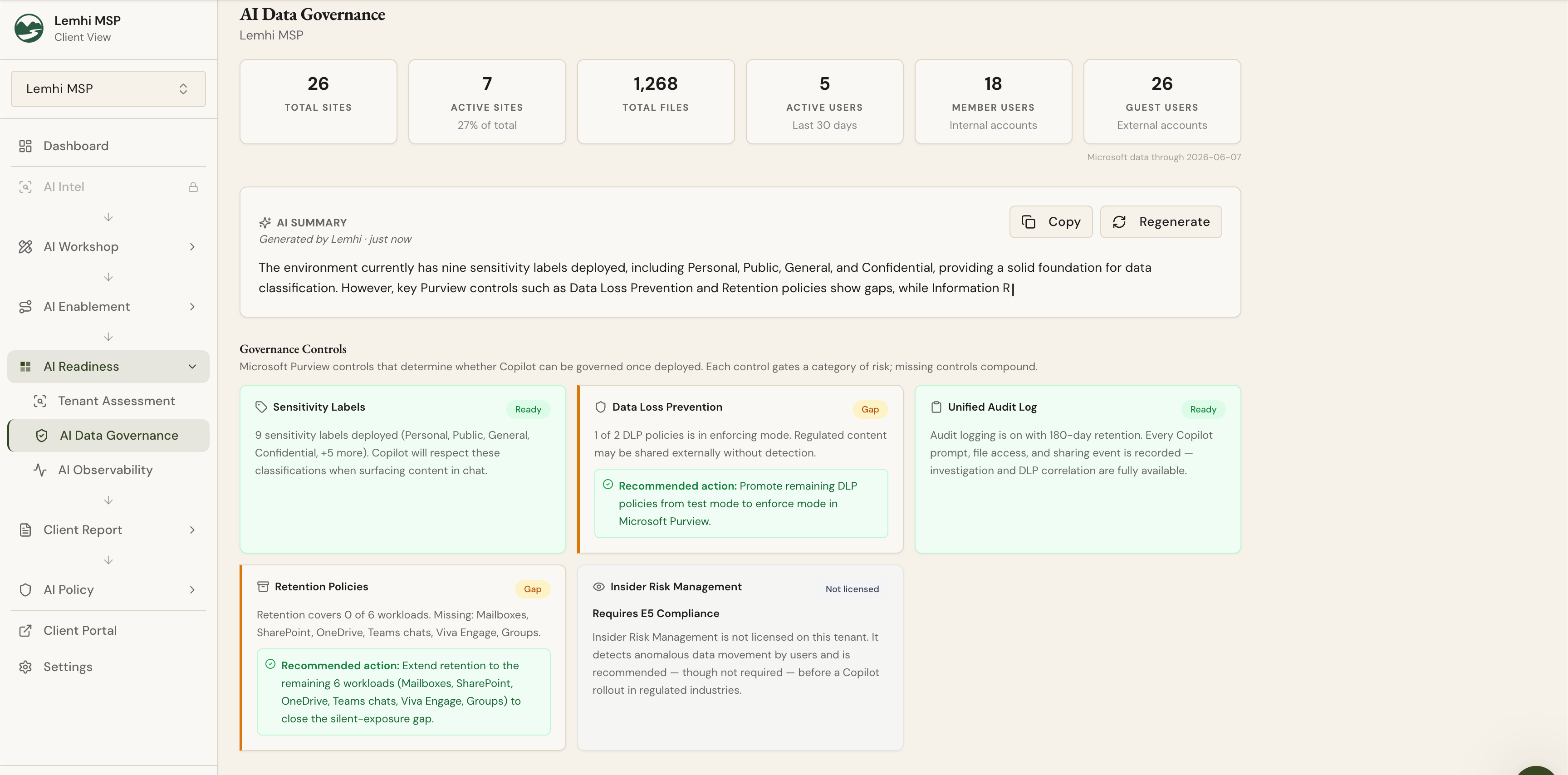
AI is only as safe as the SharePoint it can see. The Data Governance Dashboard gives you a standing read on each client's data posture, so you catch the oversharing and retention gaps that turn into incidents once an assistant can surface every file in the tenant.
What it surfaces
SharePoint sharing and tenant policy: Lemhi pulls the client's SharePoint sharing settings and tenant-level policy and rolls them into one posture view, so you're not clicking through admin centers to assemble the picture.
Risky sites and retention gaps, flagged: The dashboard calls out the sites and retention gaps that represent the most exposure, so you lead the client conversation with the items that actually matter.
The AI summary writes your talking points
A client-ready narrative in seconds: Each dashboard includes an AI-generated summary that streams in as it's written, with one-click Copy and Regenerate. Turn raw posture signals into language you can paste into a client email or read off on a call, without drafting the explanation yourself.
Where to find it
Open a client, then AI Readiness → AI Data Governance in the left menu. It's now its own item alongside Tenant Assessment, no longer buried inside the assessment screen.
MSP Partner Dashboard
Run your whole book of business from one screen.
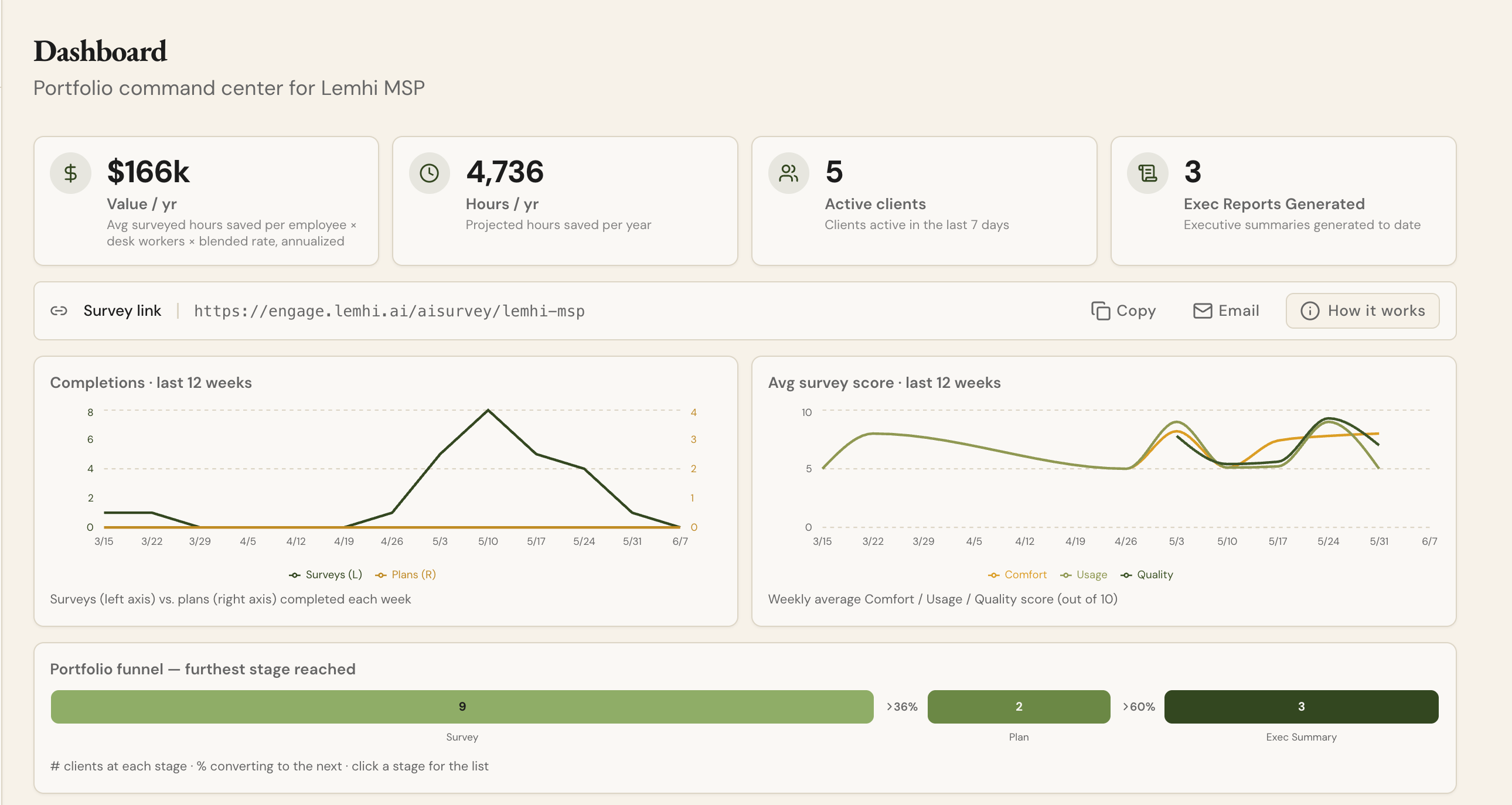
A new partner-level dashboard rolls every client up into a single portfolio view, so you can see where each engagement stands without opening clients one at a time.
Spot what needs attention at a glance: See which engagements are stalled and which are ready for the next step across your entire portfolio, so QBR prep starts with the accounts that actually need you.
AI Workshop & Planning: Executive Summary
Make every deliverable easy to run and easy to hand off.
Every hour of discovery, surveying, scanning, and planning, collapsed into one branded document leadership actually reads, and remembers.
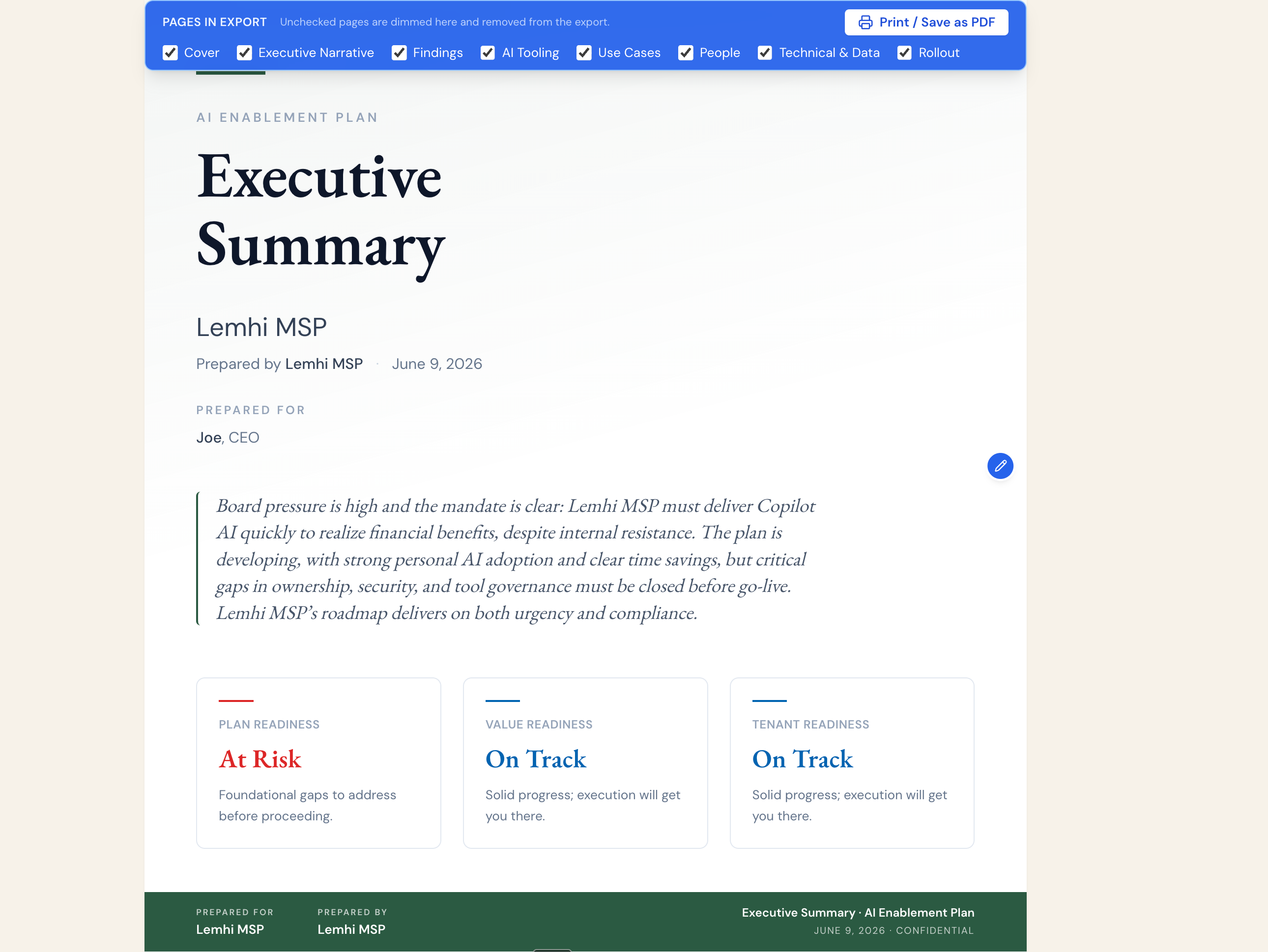
The Executive Summary opens the AI Enablement Plan with a single, C-suite-ready overview that pulls signal from every module you've worked (AI Survey, AI Plan, Tenant Assessment, Tooling Inventory, and the AI Roadmap) and frames it as the client's AI strategy, not a pile of homework. It's the proof of everything the engagement produced, and it's the version of the plan leadership sponsors and keeps coming back to.
An AI-written narrative in a senior consultant's voice: Not a template. A confident, opinionated read of where this specific client stands, the first quick wins named by name, the biggest productivity opportunity ahead, and a clear next move tied to the 90-day plan. It reads like your best strategist wrote it, for every client, every time.
The whole engagement on one page: Three readiness scores up top, then strengths and risks, tooling posture (approved, unsanctioned, and pending) that makes the shadow-AI consolidation conversation visible, phased use cases with real ROI (hours/month and dollars), the people plan (owners, champions, workforce readiness, training), governance and compliance posture, and a rollout overview with go-live date and break-even. Leadership gets the full picture in one scan.
Branded as yours, present it or hand it over: Whitelabeled with the client's logo and "Prepared by you." Read it in-app, walk leadership through it in full-screen presentation mode, or send a polished PDF. Regenerate on demand as new surveys land or the plan changes, so it's never stale.
Survey & Engagement
Invitations that look like they come from you, and a preview you can trust.
Survey emails no longer carry Lemhi's branding: The invitation your clients' employees receive (and the 3- and 7-day reminders) no longer show Lemhi's logo, tagline, or footer. The survey reads as a neutral, you-fronted request instead of mail from an unknown third party, so fewer recipients write it off and more complete it.
The email preview shows exactly what you're sending: When you've customized your survey invitation copy, the preview now reflects your saved template and the real survey link.
Survey link strip is back on the Dashboard and Clients screens: Grab and send a client's survey link in one step, right where you expect it, instead of digging for it mid-meeting.
Delete a submitted survey response: Remove a submitted AI Workshop survey response so test entries and duplicates don't skew the scores you present to a client.
Bug Fixes
Fixed the AI Plan recommending tools that don't exist in a client's tenant data
Fixed missing M365 data for respondents who completed the survey before the M365 integration was connected, so their data now backfills
Resolved an issue that would not allow invites to properly update when customized.
Fixed Custom Report commentary being lost when you navigated away immediately after typing